


Before moving to this article, you can find our other very Important articles
AI Product Metrics ( AI PM Interview Question )
As a Product Manager, you probably feel like you are running on a treadmill that keeps getting faster. (These are the exact words my Product Lead said last week )
When you wrap your head around LLMs, RAG, or vector databases, a new term like OpenClaw starts buzzing in your LinkedIn feed or Slack channels.
It is natural to feel a bit of FOMO or stress. You might wonder if this is just another overhyped tool or something that actually changes how we build products.
Let us take a deep breath and look at what OpenClaw actually is.
AI PM Course ( + AI PM Interview Questions ) - Highest Rated Course —
4.8 / 5 ( 500+ Enrollment in last 2 months) -
What is OpenClaw?
OpenClaw is an open-source framework designed to make AI agents move from just “chatting” to actually “doing” things.
In technical terms, it is an event-driven system.
This means it does not sit around wondering what to do; it waits for a specific trigger—an event—and then reacts according to a set of instructions.
The beauty of OpenClaw is its simplicity.
It avoids the heavy, expensive infrastructure usually associated with AI and uses basic text files to manage its memory and instructions.
How it works: The Four Pillars
To understand how it functions, let us look at the four main components that make the system move.
1. The Gateway
The Gateway functions as a router. It is the most basic part of the architecture because it does not process logic or make decisions.
Its primary responsibility is to remain active at all times to ensure the system is always reachable.
When a message or data packet arrives from an external source, the Gateway performs two tasks.
First, it identifies and tags the type of input.
Second, it places that input into a queue.
This queue serves as a holding area for the Agent. By acting as a buffer, the Gateway ensures that even if a high volume of requests comes in at once, nothing is dropped or lost while the Agent is busy or inactive.
2. The Inputs
In most AI apps, nothing happens until a human types a prompt. OpenClaw is different because it reacts to many triggers:
Time-based triggers: Tasks that run every day at a specific time.
External pokes: A notification from another software (like a payment being received).
System pulses: A regular “heartbeat” to check if everything is okay.
3. The Agent
The Agent is the actual worker.
It stays asleep to save resources until the Gateway hands it a task. When it wakes up, it reads a file called instruction.mmd. This is its rulebook. It tells the agent exactly how to behave in that specific moment.
4. Simple Memory
Instead of using a complex database, OpenClaw uses Markdown files.
These are just plain text files. Every time the agent wakes up, it reads the diary of what happened before. This makes the system very fast and, more importantly, easy for a human to read and fix.
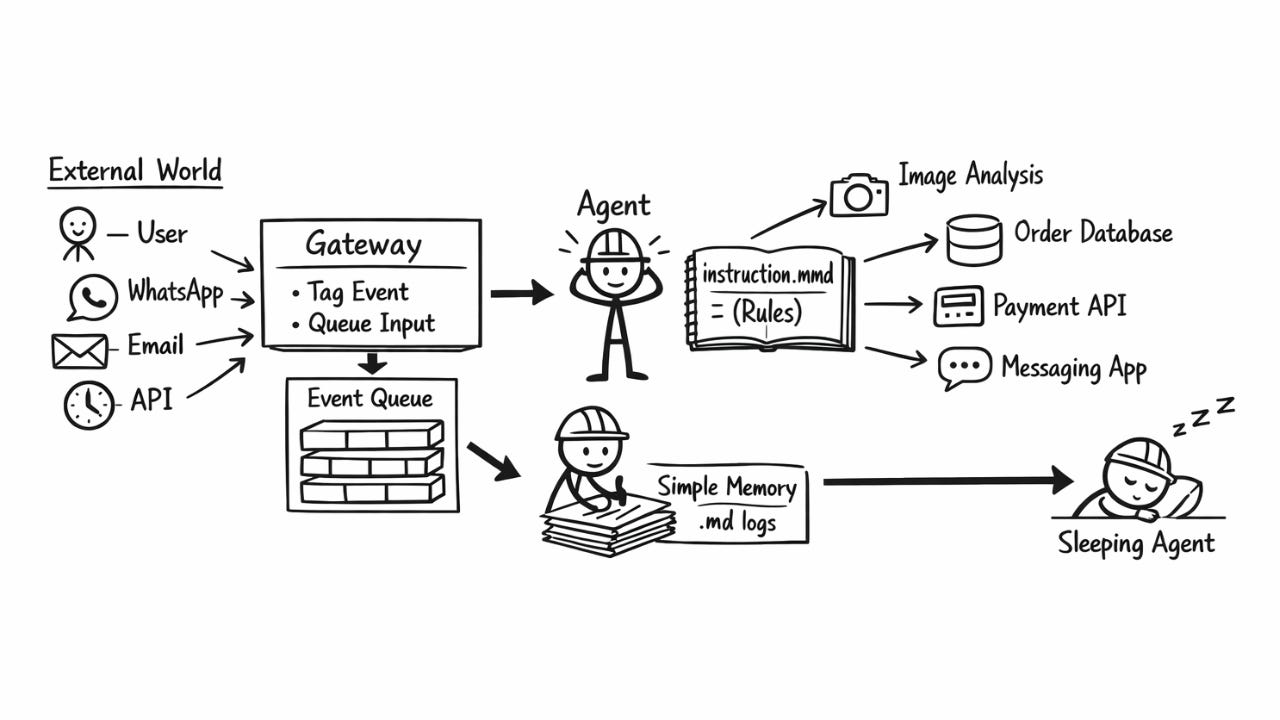
Let’s understand one of usecase for openClaw
Managing a Customer Refund
Imagine you run an e-commerce platform, and a customer wants a refund for a damaged product.
Trigger
A customer sends a photo of a broken vase via WhatsApp. The Gateway receives this image, tags it as a Refund Request, and puts it in the queue.
Instruction
The Agent wakes up and reads its instruction file.
The rule says - If a customer sends a photo of a damaged item, use the Image-Analysis tool to verify the damage.
Tools
The Agent uses a tool to look at the photo. If it confirms the damage, it uses another tool (an API) to check the customer’s order history in your database.
Decision and Action
The Agent sees that the customer is a loyal Gold Member.
Its instructions say: For Gold Members, process refunds under ₹2000 immediately. It then uses a payment tool (like Stripe or Razorpay) to trigger the refund and sends a confirmation message back to the customer.
Memory
Finally, the Agent writes a quick note in its Markdown diary - Refunded ₹1500 to Order #123 due to a broken vase. Customer notified.
Then, it goes back to sleep.
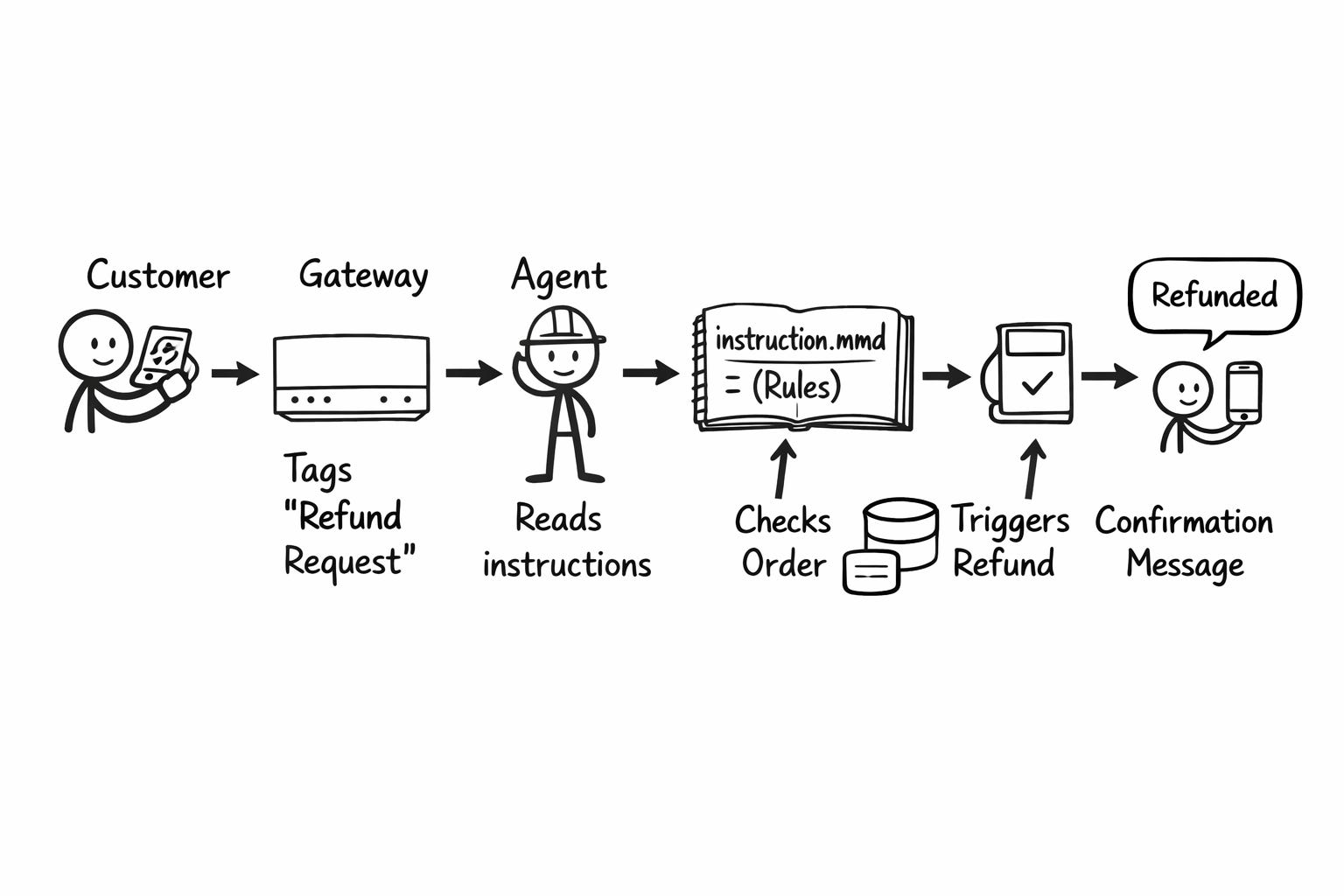
Step by STep to set up OpenClaw for Refund
Here is how you can set this up specifically for a refund workflow.
Step 1 - Get your Cloud Server Ready
To ensure your refund bot is online 24/7, you need a VPS (Virtual Private Server). Because if you go ahead and setup on the local, it can happen that it will be offline if your power goes off or your computer goes to sleep so better to make the setup on VPS.
Step 2 - Get your AI Keys
OpenClaw needs to think, so it will need access to LLM
Go to the OpenAI or Anthropic websites and create a new API key. Make sure you have added a small amount of credit to your billing account so the keys work. Paste these keys into your server setup screen. Copy the Gateway Token that the setup gives you. This is your master password for the system.
Step 3 - Connect to your Dashboard
Once the server status shows as Running, open your OpenClaw dashboard link. The dashboard will initially show a disconnected status. Go to the Overview tab, paste your Gateway Token, and hit connect. Send a simple message like “Are you ready to handle refunds?” to verify it is active.
Step 4 - Link your Communication Channel
You want to be notified when a refund happens, and Telegram/WhatsApp are the easiest way to do this.
Tell your OpenClaw assistant: Let us set up Telegram/WhatsApp. Follow its instructions to create a bot using BotFather on Telegram. Once you get the bot token and your Chat ID (using a User Info bot), paste them into OpenClaw. Now, your refund bot can send you messages directly on your phone.
Step 5 - Install the Necessary Skills
For a refund system, the agent needs to talk to your business tools. Here you need to connect Gmail because the majority of your requests will come via email and the payment gateway for the redunds
Step 6: Create the Refund Instruction
This is the most important part. You need to give the agent its rulebook. Create a file called instruction.mmd in the agent settings with these simple rules:
Look for emails with the subject “Refund Request.” Check the order ID in our database using the attached skill. If the item is marked as Returned and the amount is less than ₹2000, process the refund automatically. If the amount is higher, send a message to the manager on Telegram asking for approval.
Step 7: Automate the Check
You do not want to check for refunds manually. Go to the Cron Jobs tab in your dashboard. Create a new job to run every hour. Set the instruction to: Check Gmail for new refund requests and process them according to my rules.